Tuning — Feel Panel
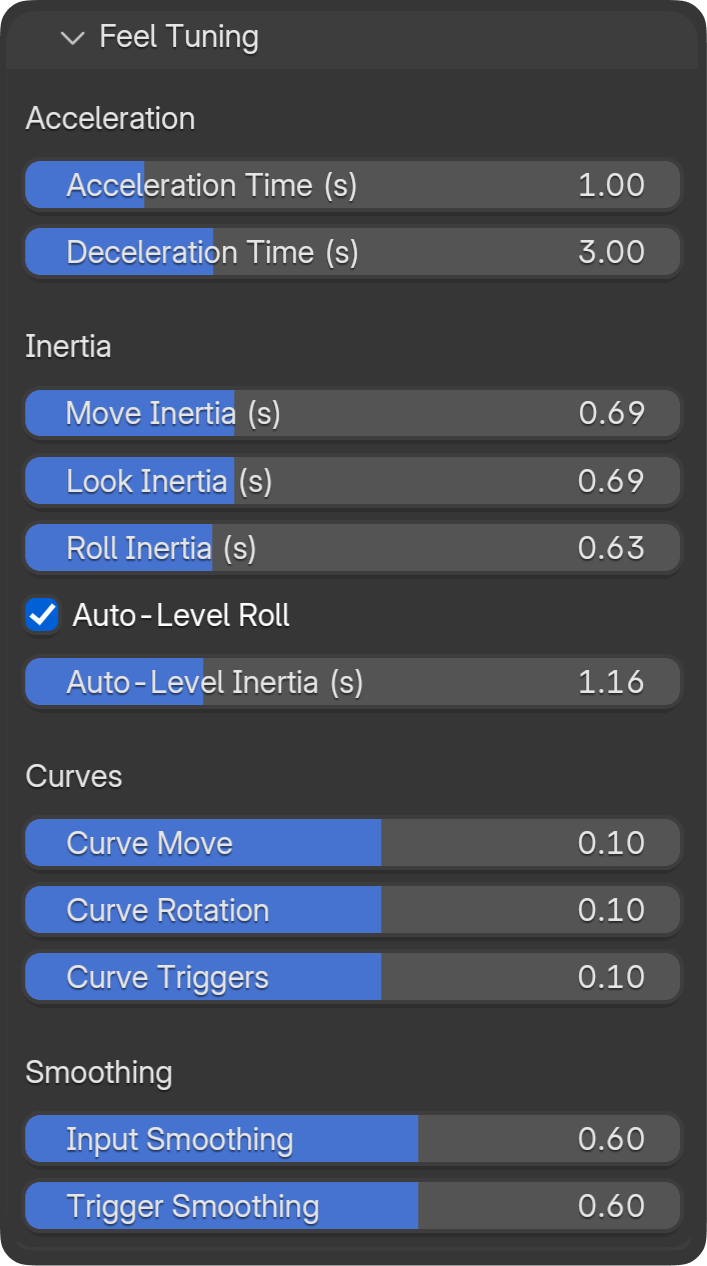
The Feel panel shapes how the camera responds to stick input. These settings affect the "feel" of flight — smooth vs snappy, gentle vs direct.
Response Curves (Strength Sliders)
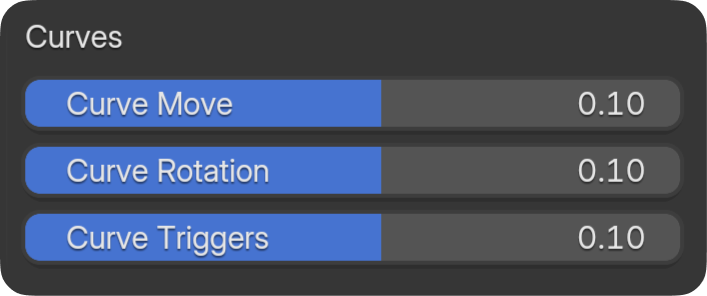
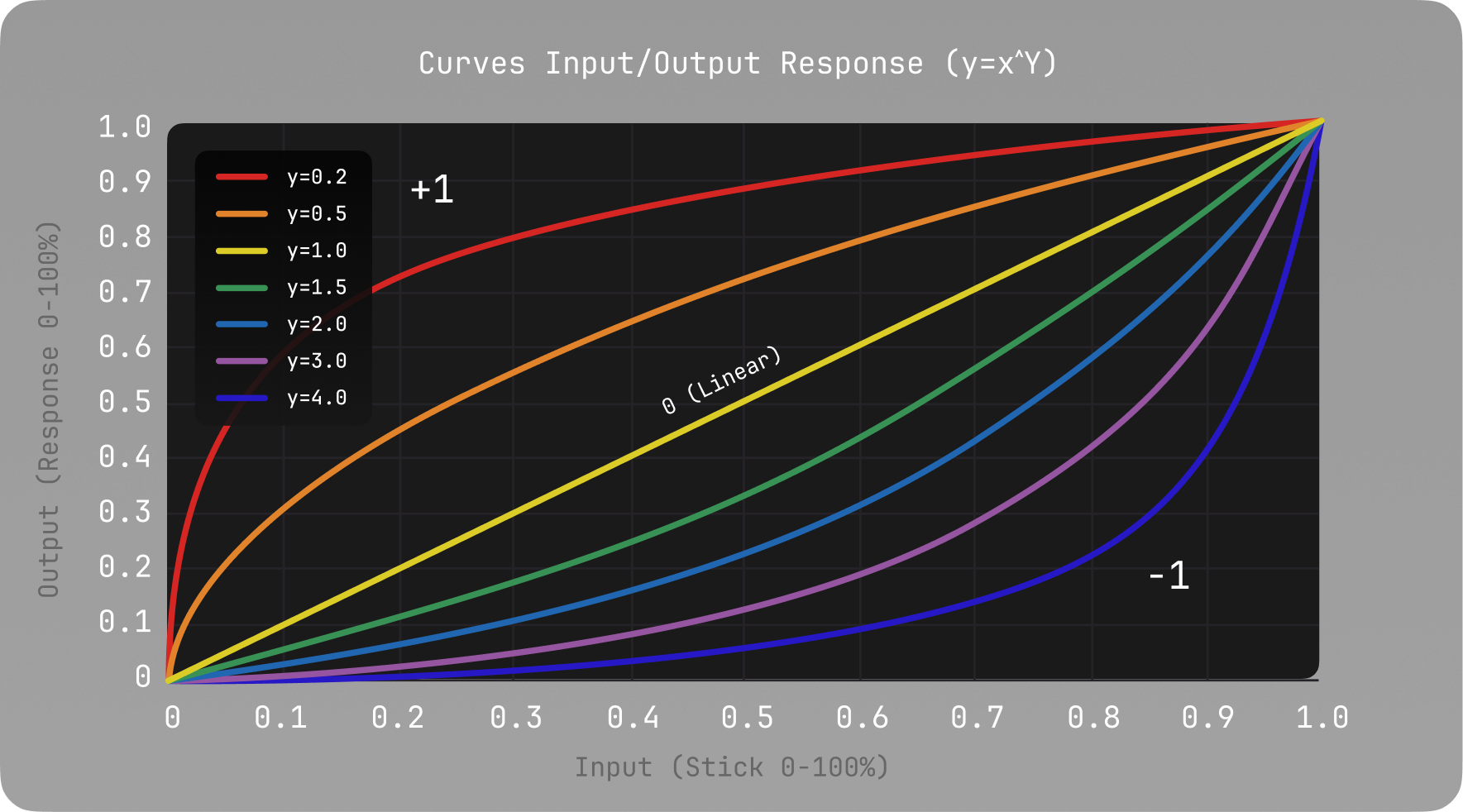
Curves change how stick deflection maps to motion. Think of it as: how much do you need to push the stick to get a response?
| Strength | Effect | When to use |
|---|---|---|
| 0 (Linear) | Direct 1:1 — half stick = half speed | Default, predictable |
| +1 (Gentle) | Softer at low input — small stick moves give less response | Cinematic, handheld feel |
| −1 (Aggressive) | Snappier at full deflection — more response near the edges | Fast, arcade-style |
There are separate curves for:
- Translation — Movement (forward, strafe, up/down)
- Rotation — Look (pan, tilt)
- Trigger — FOV, roll (when mapped to triggers)
In practice: Use Gentle (+1) for smooth, film-like motion. Use Aggressive (−1) when you want quick, precise reactions.
Acceleration & Deceleration Time
- Acceleration Time — How long it takes to reach target speed when you push the stick.
- Deceleration Time — How long it takes to slow down when you release or reduce input.
In practice:
- Short times — Camera responds quickly, feels tight and direct.
- Long times — Camera eases in and out, feels more cinematic and floaty.
Response Times (Decay to Zero)
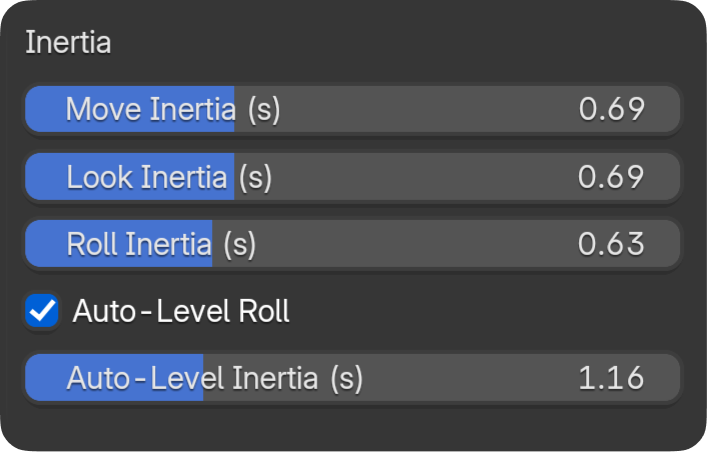
When you release the stick, the camera doesn't stop instantly. These control how fast motion decays:
- Move Response Time — How fast movement stops when you release the left stick.
- Look Response Time — How fast rotation stops when you release the right stick.
- Roll Response Time — Same for roll.
- FOV Response Time — Smoothing of zoom changes.
- Auto-Level Response Time — How fast roll levels to horizon (when Auto-Horizon is on).
In practice: Longer = more inertia, smoother stops. Shorter = snappier, stops almost immediately.
Input Smoothing
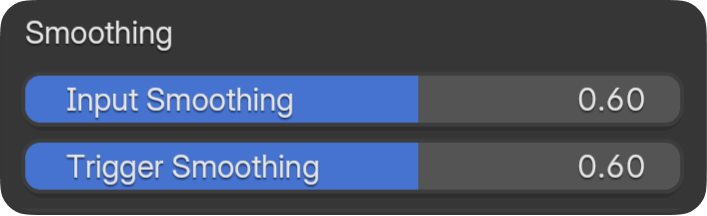
Reduces jitter from small stick movements.
In practice: Useful for handheld-style or cinematic feel. Turn on if the camera feels twitchy with small stick movements.
Deadzones
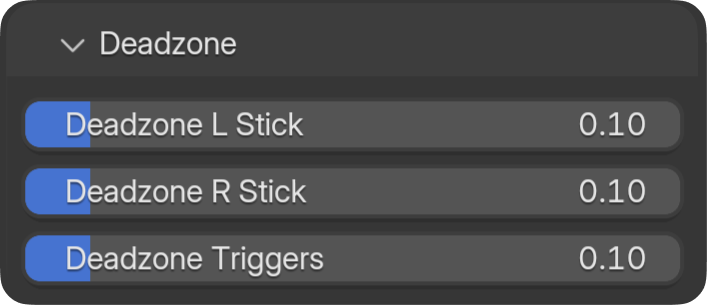
Ignore small stick movements near center. Helps with controllers that drift slightly when you're not touching them.
In practice: If the camera drifts or moves when the stick is "at rest," increase deadzone. If the stick feels unresponsive near center, decrease it.
Summary — Quick Presets by Feel
| Goal | Curves | Accel/Decel | Response times |
|---|---|---|---|
| Cinematic | Gentle (+1) | Longer | Longer |
| Fast / Direct | Aggressive (−1) or Linear | Shorter | Shorter |
| Balanced | Linear (0) | Medium | Medium |
Use Presets to save your preferred setup.